---
title: Rabco Simple - How do I hire a new employee/contractor?
description: Follow these steps to add a new employee to your system using the Hiring Wizard.
---
[Skip to content](https://university.rabcopayroll.com/rabco-simple-new-hire#main-content)
English
Show submenu for translations
[Request Support](https://university.rabcopayroll.com/kb-tickets/new?hsLang=en) [Customer portal](https://university.rabcopayroll.com/supporthub?hsLang=en)
![New RABco Logo2.png\]](https://university.rabcopayroll.com/hs-fs/hubfs/All%20MEDIA-%20Videos%20and%20Images/Logo%20and%20Images/New%20Logo%202021/New%20RABco%20Logo2.png?height=40&name=New%20RABco%20Logo2.png)
- [Rabco](https://university.rabcopayroll.com/blog)
Open main navigation
Close main navigation
- [Rabco](https://university.rabcopayroll.com/blog)
- English
Show submenu for translations
- [Request Support](https://university.rabcopayroll.com/kb-tickets/new)
- [Customer portal](https://university.rabcopayroll.com/supporthub)
- rabcopayroll.com
rabcopayroll.com
Hello. How can we help you?
- There are no suggestions because the search field is empty.
1. [Help Center](https://university.rabcopayroll.com/?hsLang=en)
2. [Rabco Simple](https://university.rabcopayroll.com/rabco-simple?hsLang=en)
3. [Administrator Guides](https://university.rabcopayroll.com/rabco-simple?hsLang=en#administrator-guides)
# Rabco Simple - How do I hire a new employee/contractor?
## Follow these steps to add a new employee to your system using the Hiring Wizard.
### How to Add a New Hire to Your Environment
Follow these steps to add a new employee to your system using the Hiring Wizard.
#### Step 1: Access the Hiring Wizard

1. From the Administrator Dashboard, go to the Manage Stuff tab.
2. Click on the HR icon, then select Employee Information.
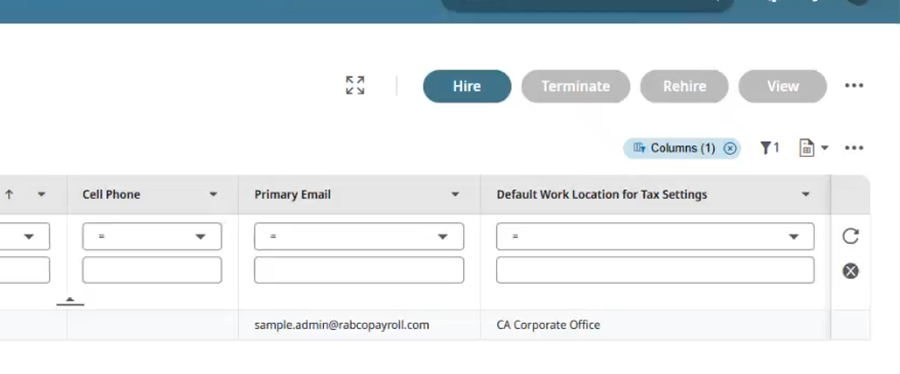
1. On the Employee Information page, click the 'Hire' button in the top right corner to start the Hiring Wizard.
#### Step 2: Enter Basic Information
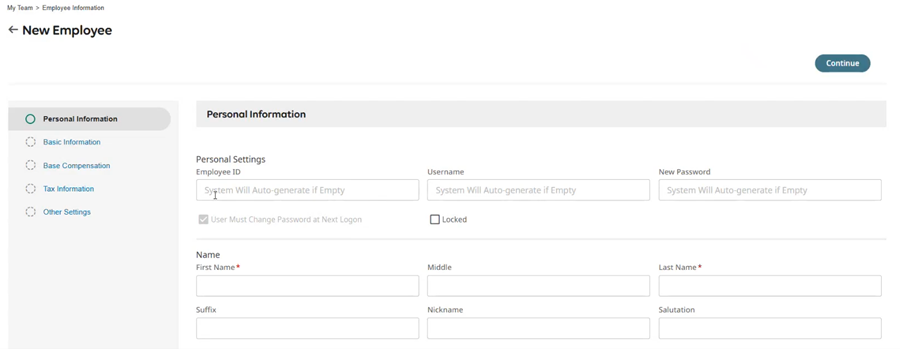
- Employee ID: Leave blank to auto-generate or manually enter one.
- Username: Leave blank to auto-generate or manually enter one.
- Password: The system will auto-generate a temporary password.
- Note: New users must change their password upon first login. They’ll receive credentials via email.
#### Step 3: Enter Personal Details
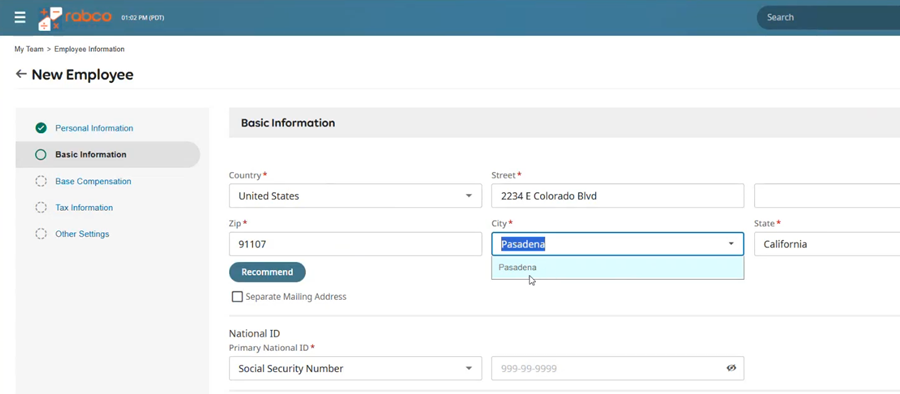
- Fill in required fields marked with a red asterisk (\*).
- Add additional info (e.g., middle name, nickname, salutation) if desired.
- Enter the employee's address. The city and state will auto-populate after entering the ZIP code.
- Optional: Enter a separate mailing address if applicable.
#### Step 4: Enter SSN and Email
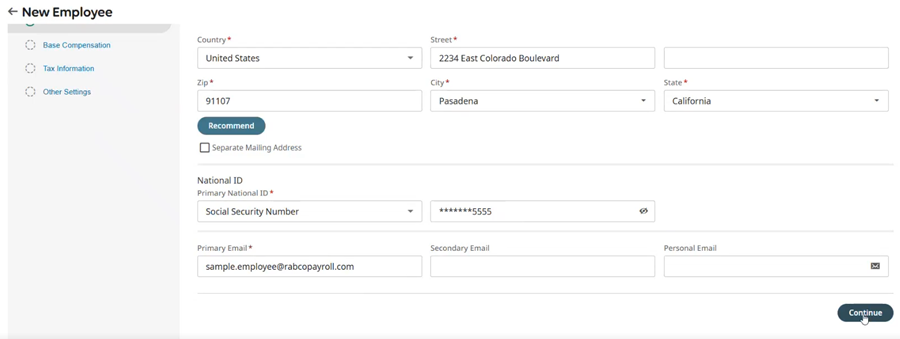
- Social Security Number is required and must be unique.
- Primary Email is required for the welcome email.
- Additional emails are for internal tracking only.
Select Continue to move to the next screen.
#### Step 5: Set Base Compensation
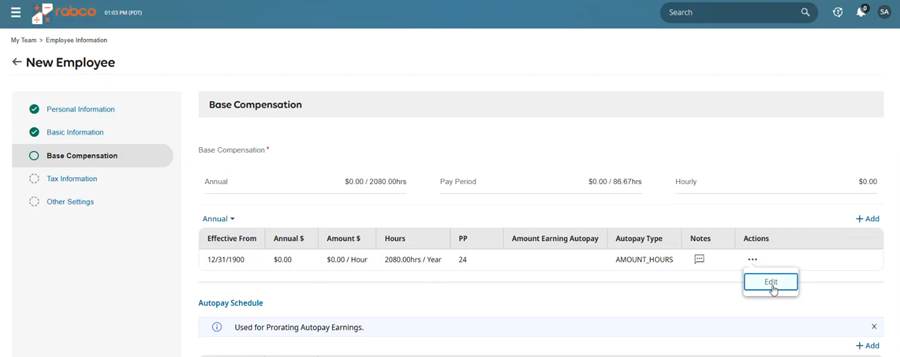
1. Click the Actions icon “…” and select Edit.
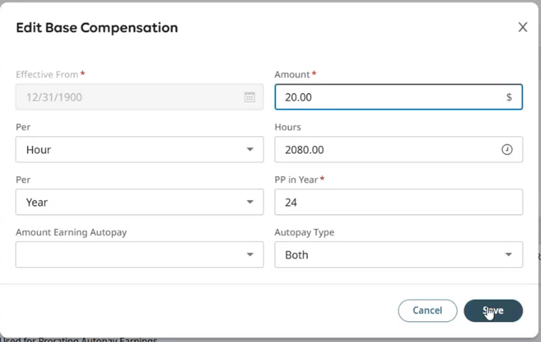
1. Enter the hourly rate (e.g., $20/hour for non-exempt employees).
2. Leave 'Amount Earning Auto Pay' blank unless it's a salaried position.
3. Click Save.
**Refer to the base compensation training video for advanced settings.**
#### Step 6: Complete Tax Settings
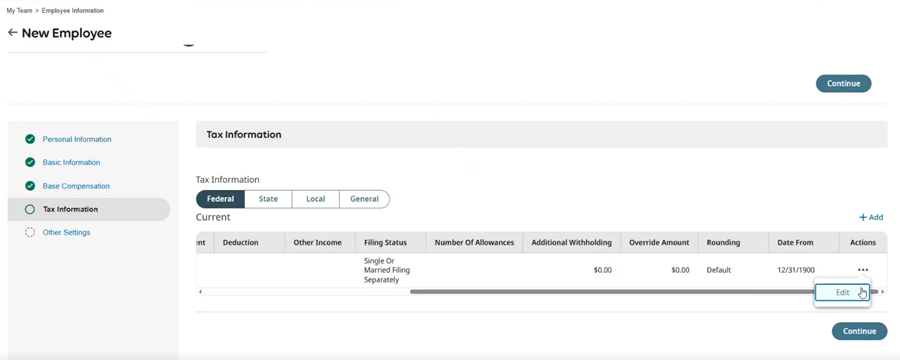
- Complete tabs for Federal, State, Local, and General taxes.
1. For Federal use the scroll bar to navigate to the far right and Click the Actions icon “…” and select Edit.
- Choose correct filing status and enter any dependents, deductions, etc.
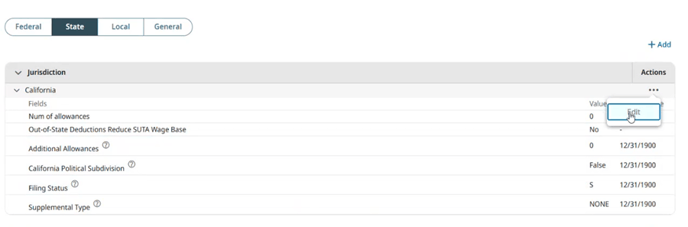
- Default state will be pre-set but can be changed.
1. To edit Click the Actions icon “…” and select Edit.
- Click Save after each section.
Click Continue to Navigate to the next section.
#### Step 7: Assign System Profiles
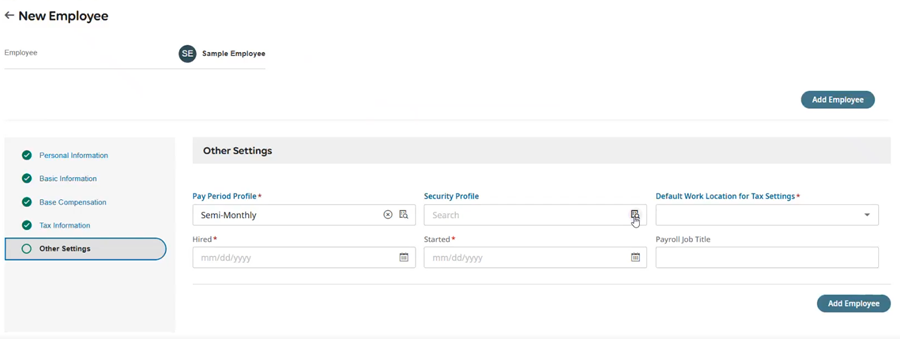
- Pay Period Profile will auto-fill based on company setup.
- Security Profile determines access level (e.g., Employee or Company Administrator).
- Work Location should match employee’s physical location for tax purposes.
- Set Hire Date and Start Date (usually the same).
#### Step 8: Complete the Hire
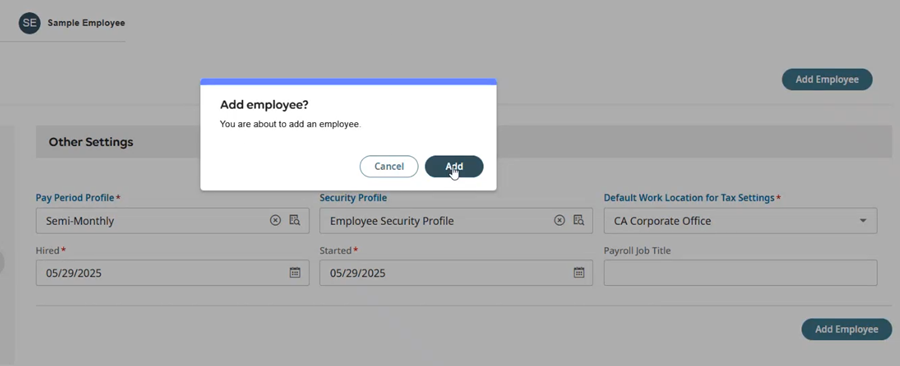
- Click 'Add Employee'.
- Confirm when prompted.
- You will now be in the employee's record.
#### Step 9: Explore the Employee Record
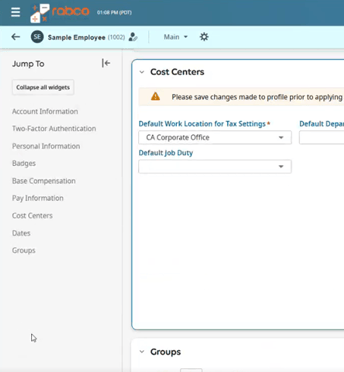
- Use the left pane to jump to different sections of the employee record.
- Use the right pane to access profiles like holiday tables, security, and retirement plans.
- Use the Toggle Button in the top right to toggle between two-column and single-column views for easier navigation.
#### Additional Training
For more information, see the training videos on topics like base compensation, deductions, terminations, and rehires.
- [Kronos Workforce Ready (UKG Ready)](https://university.rabcopayroll.com/kronos-workforce-ready-ukg-ready?hsLang=en#main-content)
- [Manager](https://university.rabcopayroll.com/kronos-workforce-ready-ukg-ready?hsLang=en#manager)
- [Employee](https://university.rabcopayroll.com/kronos-workforce-ready-ukg-ready?hsLang=en#employee)
- [HR](https://university.rabcopayroll.com/kronos-workforce-ready-ukg-ready?hsLang=en#hr)
- [Advanced Scheduler](https://university.rabcopayroll.com/kronos-workforce-ready-ukg-ready?hsLang=en#advanced-scheduler)
- [Manager Guides](https://university.rabcopayroll.com/manager-guides?hsLang=en#main-content)
- [Administrator](https://university.rabcopayroll.com/manager-guides?hsLang=en#administrator)
- [Timekeeping](https://university.rabcopayroll.com/manager-guides?hsLang=en#timekeeping)
- [Isolved](https://university.rabcopayroll.com/manager-guides?hsLang=en#isolved)
- [Employee Guides](https://university.rabcopayroll.com/employee-guides?hsLang=en#main-content)
- [Timekeeping & Attendance](https://university.rabcopayroll.com/employee-guides?hsLang=en#timekeeping-attendance)
- [Rabco Essentials](https://university.rabcopayroll.com/rabco-essentials?hsLang=en#main-content)
- [Employee Guides](https://university.rabcopayroll.com/rabco-essentials?hsLang=en#employee-guides)
- [Manager Guides](https://university.rabcopayroll.com/rabco-essentials?hsLang=en#manager-guides)
- [Administrator Guides](https://university.rabcopayroll.com/rabco-essentials?hsLang=en#administrator-guides)
- [Rabco Simple](https://university.rabcopayroll.com/rabco-simple?hsLang=en#main-content)
- [Employee Guides](https://university.rabcopayroll.com/rabco-simple?hsLang=en#employee-guides)
- [Administrator Guides](https://university.rabcopayroll.com/rabco-simple?hsLang=en#administrator-guides)
- [isolved](https://university.rabcopayroll.com/isolved?hsLang=en)
- [New Client On-boarding Forms](https://university.rabcopayroll.com/new-client-on-boarding-forms?hsLang=en#main-content)
- [Employee Forms](https://university.rabcopayroll.com/new-client-on-boarding-forms?hsLang=en#employee-forms)
- [Employer Forms](https://university.rabcopayroll.com/new-client-on-boarding-forms?hsLang=en#employer-forms)
- [Best Practices](https://university.rabcopayroll.com/best-practices?hsLang=en#main-content)
- [(UKG) Kronos](https://university.rabcopayroll.com/best-practices?hsLang=en#ukg-kronos)
- [Rabco](https://university.rabcopayroll.com/blog)
[](https://www.rabcopayroll.com?hsLang=en)
Our team will help you find answers, whether through a reference document, email, or phone call. Contact us at (626) 479-2022 or support@rabcopayroll.com.
Copyright © 2026, Rabco Payroll Services, Inc.
```json
{
"@context" : "https://schema.org",
"@type" : "VideoObject",
"caption" : {
"@type" : "MediaObject",
"contentUrl" : "https://university.rabcopayroll.com/media-transcripts/191108275975/en.vtt",
"inLanguage" : "en",
"name" : "en Captions"
},
"contentUrl" : "https://2513536.fs1.hubspotusercontent-na2.net/hubfs/2513536/Rabco%20Simple%20-%20How%20to%20Add%20a%20New%20Hire.mp4",
"dateModified" : "2026-01-06T01:46:35.159Z",
"duration" : "PT9M44S",
"height" : 1080,
"name" : "Rabco Simple - How to Add a New Hire",
"thumbnailUrl" : "https://2513536.fs1.hubspotusercontent-na2.net/hubfs/2513536/Rabco%20Simple%20-%20How%20to%20Add%20a%20New%20Hire.mp4/medium.jpg",
"uploadDate" : "2025-06-07T00:39:30.498Z",
"width" : 1920
}
```